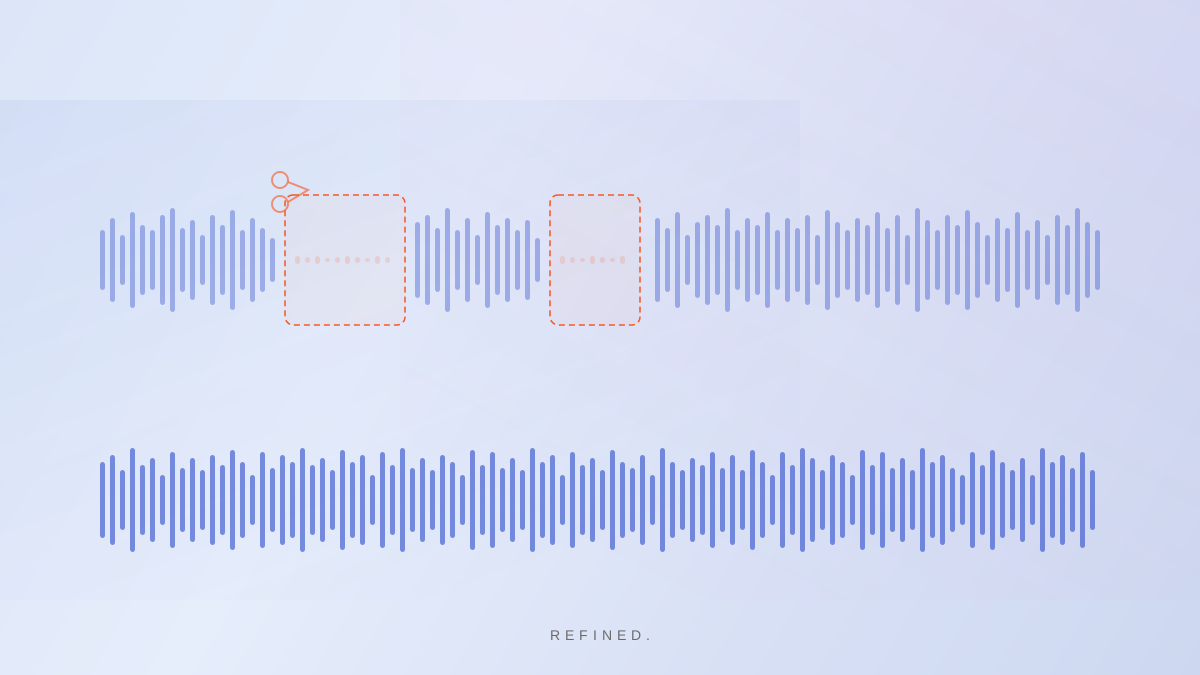
TL;DR: To cut dead air from video with AI, use a tool that analyzes your audio and automatically detects long pauses, silence gaps, and slow sections. Refined scans your clip when you import it, removes dead air alongside filler words and bad takes, and shows you exactly what was cut in the transcript view. The result is tighter pacing without manually scrubbing through your timeline looking for pauses.
Silence is costing you viewers.
You know the moment. You are mid-video, you lose your train of thought for a second, and there is this gap. Two seconds of you looking slightly off-camera while your brain catches up. You moved on and kept filming. But it is still in the clip.
On TikTok, Reels, and YouTube Shorts, two seconds is enough time for a viewer to scroll past you entirely. Dead air — the pauses, the silence gaps, the slow moments between sentences — is one of the most common reasons short-form videos lose retention mid-watch.
The fix is straightforward. Doing it manually is not.
What counts as dead air in a talking-head video?
Not all pauses are equal. A short breath between sentences is natural and should stay. A two-second gap where you are clearly thinking or regrouping should go.
Dead air worth cutting typically includes pauses longer than about half a second between sentences, silence at the start of a clip before you begin speaking, gaps created by a false start, and the tail end of a clip where you have finished speaking but have not stopped recording yet.
In a three-minute talking-head video, these gaps can add up to 20 or 30 seconds of total dead time. Cut them and you have a tighter video without changing a single word you said.
The Millennial Pause is costing you viewers.
If you have ever watched your own video back and noticed a beat of silence right at the start before you begin speaking, that is the Millennial Pause. It comes from years of hitting record on a phone and waiting a second to make sure it actually started. The camera is rolling. You just do not trust it yet.
On short-form platforms, that opening pause is particularly costly. Viewers and algorithms both reward videos that start strong and fast. A one or two second gap before your first word can tank your hook and your retention before you have said anything at all.
It is one of the most common things Refined removes automatically. Most creators do not even notice it is there until they see it flagged.
How to cut dead air from your video with Refined
Refined is a mobile AI video editor built for talking-head creators. Dead air removal runs as part of the same auto-edit that handles filler words and bad takes.
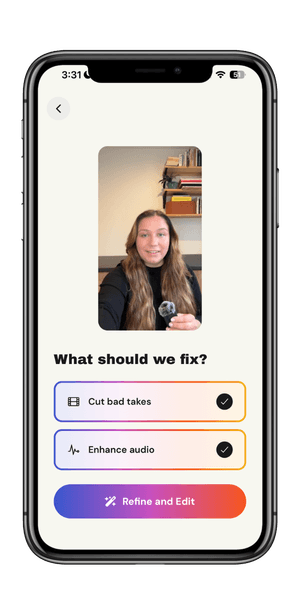
Import your clip. Pull a video from your camera roll. On the processing screen, select “Cut bad takes” and optionally “Enhance audio,” then tap “Refine and Edit.”
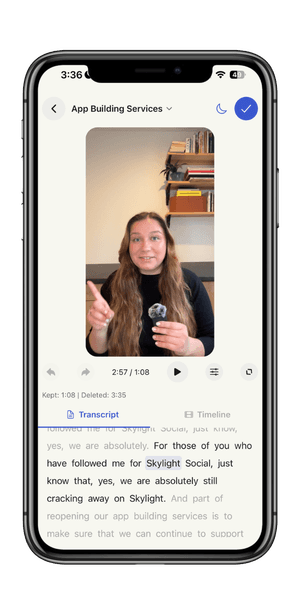
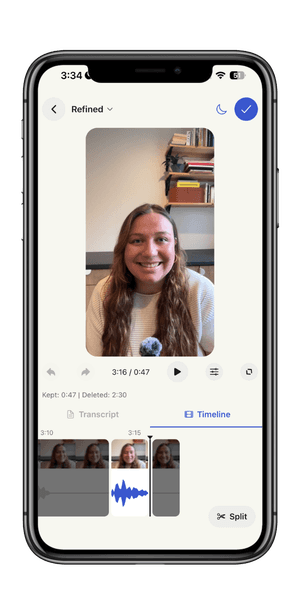
Review what got cut. Refined shows you the full transcript with everything that was removed. Dead air appears as greyed-out gaps between words so you can see exactly where the pauses fell without hunting through a waveform.
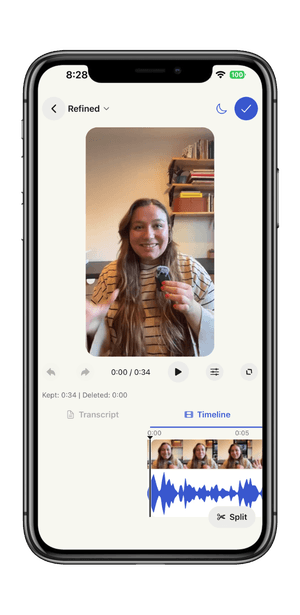
Restore anything you want to keep. Each flagged section maps to a moment on the timeline. Tap to restore a cut, tap again to remove it. The AI finds them. You decide what stays.
Export and post. Refined saves the finished video to your phone. Post directly to TikTok, Instagram, YouTube Shorts, or wherever your audience is.
Pacing is the real product.
Cutting dead air is really about pacing. And pacing is one of the biggest factors in whether someone watches your whole video or scrolls halfway through.
When a video has good pacing, viewers do not consciously notice it. They just feel like the creator is confident and worth listening to. When a video has bad pacing — too many pauses, too much silence between points — viewers feel it even if they cannot name it. They scroll.
Removing dead air is one of the fastest ways to tighten a video without rewriting your script or re-recording it. The content is already there. You are just cutting the space between it.
Frequently asked questions
How long of a pause should I cut from a video?
A general rule is to cut any pause longer than about half a second that does not serve a purpose. A brief beat between two strong points can work well for emphasis. A two-second gap where you are clearly thinking or lost your place should go. Refined flags the pauses that fall outside the natural rhythm of your speech so you can make the call on each one.
Will cutting silence make my video feel rushed?
Only if you cut too aggressively. The goal is to remove unintentional gaps, not every breath. Refined lets you review each flagged section before it is finalized, so you can keep the pauses that feel natural and intentional while removing the ones that just slow things down.
Does removing dead air also remove filler words?
In Refined, yes. Both happen in the same pass. The AI flags filler words, false starts, bad takes, and dead air all at once. Most creators find that handling both in a single session makes a much bigger difference to the final video than doing either one alone.
Can I remove silence from a video on my phone?
Yes, with Refined. Refined is a native iOS app, with Android coming soon. You import, edit, and export without ever leaving your phone. It is built for creators who film and post from the same device.
How much time does cutting dead air actually save?
Removing dead air from a three-minute talking-head video typically cuts 15 to 30 seconds of total length. Doing it manually can take 15 to 20 minutes. With Refined, that same job is handled automatically before you make a single manual adjustment.
Tighter video. Same content.
You do not need to re-record. You do not need to rewrite. Your next video already has a tighter, faster-paced version hiding inside it.
Record. Refine. Post.