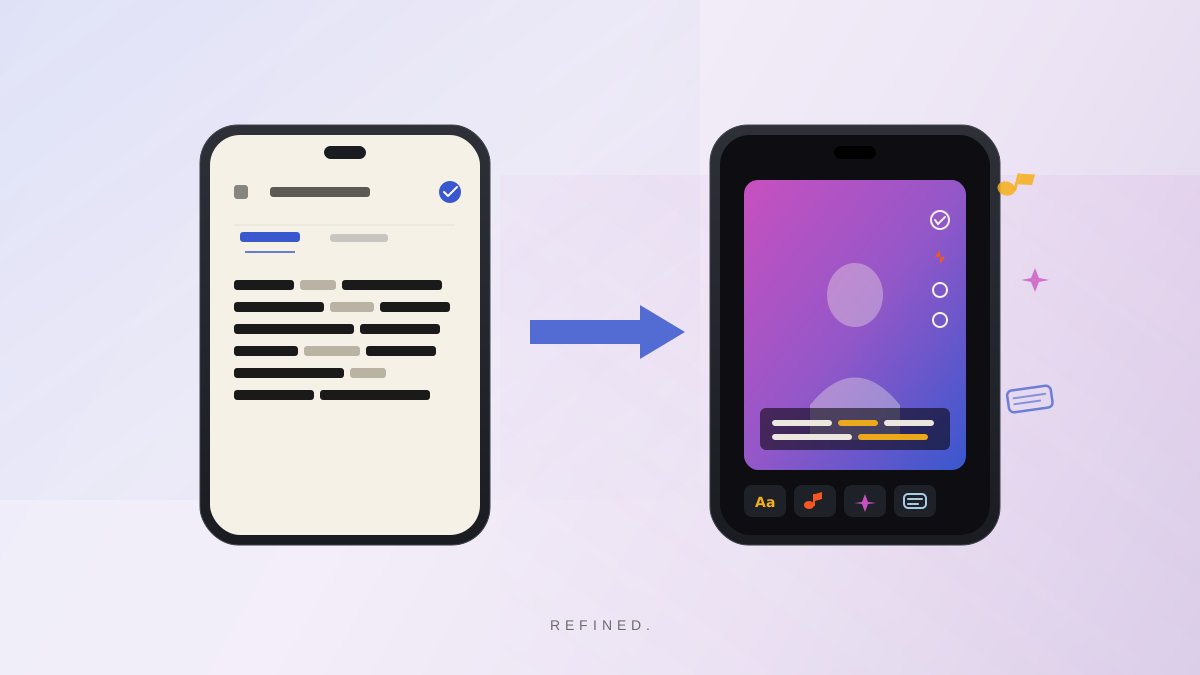
TL;DR: To edit Instagram videos faster, automate the cleanup pass and save your creative attention for the parts that actually require decisions. For talking-head Instagram content, Refined handles filler words, bad takes, and dead air automatically the moment you import your clip. Export the clean cut, bring it into your editor, and you are starting from a finished rough cut instead of raw footage. Most creators cut their editing time significantly just by removing that first manual cleanup pass.
Editing Instagram videos takes too long. Here is why.
Editing an Instagram video is not one job. It is three jobs stacked on top of each other.
The first job is cleanup: cutting the ums, the dead air, the bad takes, the stumbles. This is tedious, repetitive, and requires almost no creative judgment. Every minute of raw footage has predictable problems and they all have the same solution.
The second job is structure: trimming for pacing, cutting sections that went long, making sure the video stays on track. This takes more judgment. Some of this cannot be automated.
The third job is production: captions, music, text overlays, covers, transitions. This is the creative work. This is what most creators actually want to be doing.
The problem is that most creators do all three jobs in the same session, in the same timeline, all at once. That means you are scrubbing through your footage hunting for filler words while also trying to think about where the next caption should drop. The cognitive load of doing both at once is what makes Instagram editing feel like it takes all day.
The fix is to separate them. Handle cleanup first and fast, so you come to the creative work with a clean file.
What Refined does for Instagram creators
Refined is a mobile AI video editor built for talking-head content. It handles the cleanup pass automatically: filler words, bad takes, false starts, dead air, and the Millennial Pause at the top of your clip.
The workflow fits inside how most Instagram creators already work.
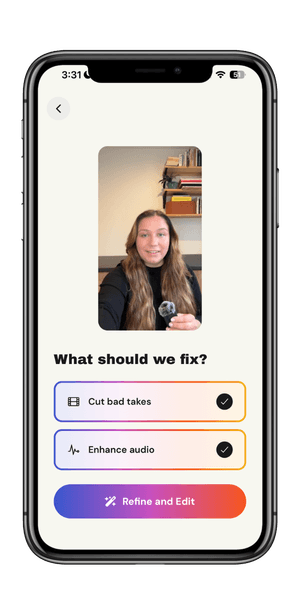
Import into Refined. Open Refined, import the clip from your camera roll, select “Cut bad takes” and “Enhance audio,” and tap “Refine and Edit.”
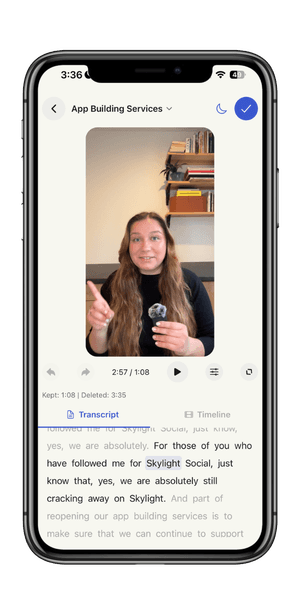
Review the edit. Refined processes the clip and shows you what it removed in the transcript view. Read through it and restore anything that should stay. This review usually takes two to four minutes.
Export to your camera roll. The cleaned-up clip saves directly to your phone. From there, bring it into CapCut, InShot, or Instagram's own Reels editor and do the creative pass.
You are arriving at your editor with a clip that has no filler words, no bad takes, and no dead air. The cleanup is already done. Everything that is left is the part that actually requires your attention.
The difference between cleanup and editing
When you open a raw clip in your editor, you are looking at a file that has problems mixed in with the content. You cannot skim it. You have to watch everything to find the issues. That is why the cleanup pass takes so long.
When you open a Refined clip in your editor, the problems are already gone. You can skim it. You can see the structure. You can make decisions about pacing, music sync, and caption timing without simultaneously hunting for ums and false starts.
The creative work becomes faster when the cleanup is not in the way.
What Refined does not replace
Refined handles talking-head cleanup. It does not handle everything.
If your Reel needs music, captions, text overlays, or a cover image, those still happen in your editor of choice. Refined does not do music sync, auto-captions, text overlays, or covers. It does not know the structure of your video beyond what you said.
What it handles is the first pass on your talking-head footage. Everything else is still yours to do. But that first pass is the part that was slowing everything down.
Stop spending an hour on the cleanup pass. Use that hour on the creative pass.
Record. Refine. Post.