TL;DR: To remove filler words from video, you either cut them manually one at a time in a timeline editor or use an AI video editor that detects them automatically from your transcript. Refined identifies every “um,” “uh,” “like,” and false start the moment you import your clip and removes them before you make a single manual edit. For most creators, the whole process takes under five minutes.
Every creator has them.
“Um.” “Uh.” “Like.” “You know.” “So basically.” “I mean.”
You did not notice yourself saying them while you were filming. You noticed them when you watched the video back. And now you have to decide: do you cut every single one, or do you leave them in and hope no one notices?
Cut them. Filler words make your video feel unpolished even when your content is good. Viewers do not always consciously register them, but they feel the difference between a clean edit and one full of hesitation sounds. Removing filler words from video is one of the fastest ways to make a talking-head clip feel more confident and professional.
The problem is doing it manually.
What filler words are actually costing you
There are two costs to filler words in a talking-head video.
The first is pacing. Every “um” is a pause. Every “like” before a sentence is a delay. At the speed short-form audiences are watching on TikTok, Instagram Reels, and YouTube Shorts, even a half-second hesitation can feel slow. Add them up across a three-minute video and you can lose 20 to 30 seconds of runtime to filler alone.
The second is perception. Filler words signal uncertainty. When a viewer hears a lot of them, they read the speaker as less confident or less prepared, even if the content is sharp. That perception affects whether they follow, share, or come back.
Neither of these problems requires re-recording. They require a good edit.
How to remove filler words manually
If you are using a traditional timeline editor, removing filler words from video looks like this.
Watch the whole clip back with the waveform visible. Every time you hear a filler word, find it on the timeline, make two cuts on either side, and delete the clip between them. Repeat for every single instance.
In a two-minute talking-head video with a moderate filler word count, you might make 30 to 50 of those cuts. It works. It takes a long time. And unless you are very careful, each cut can create a small visual jump that you then have to smooth out.
This is why most creators either skip the cleanup or spend an hour on something that should take ten minutes.
How Refined removes filler words automatically
Refined is a mobile AI video editor built for talking-head creators. Filler word removal runs automatically the moment you import your clip.
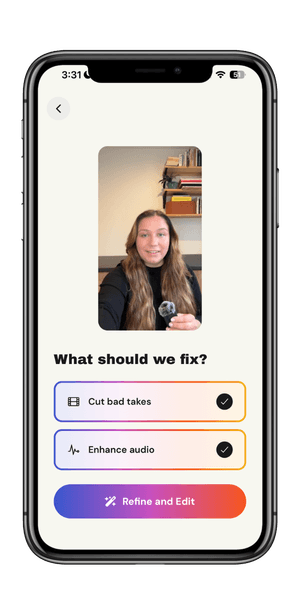
Import your clip. Open Refined and pull in your video from your camera roll. On the processing screen, select “Cut bad takes” and tap “Refine and Edit.” You do not need to tell it which words to cut. It already knows.
Review the transcript. Refined transcribes your video and flags everything it removed. Filler words appear as strikethrough text in the transcript view so you can see exactly what was cut and where it fell in your clip. Every cut maps to a word. Every word maps to a moment.
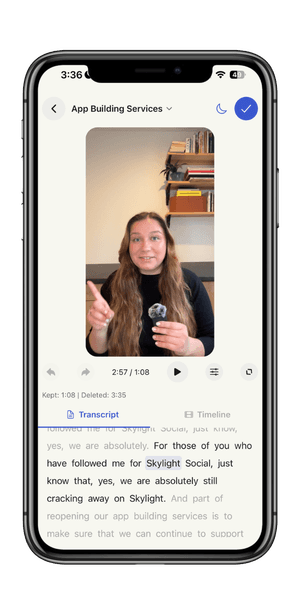
Restore anything you want to keep. Some creators use “like” intentionally as part of their voice. Some hesitations actually work. Tap any flagged word to restore it. The AI makes the first pass. You make the final call.
Export and post. When the edit looks right, export directly to your camera roll and post from there. The whole thing takes minutes, not hours.
A note on your natural voice
Removing filler words from video is not about sounding robotic. It is about removing the ones that are unintentional. There is a difference between a pause you use for emphasis and a pause that happened because you lost your place. A good edit keeps the first kind and removes the second.
Refined flags the hesitations and gaps that fall outside the natural rhythm of your speech. The ones that feel like breath or intention tend to stay. The ones that are clearly just noise tend to go. You can override any of it.
Your filler words are not part of your voice. They are just clutter between the parts that are.
Record. Refine. Post.